4/4/15

Useful Google Now Voice Commands you should know

Google has been frequently updating it’s voice assistant application Google Now. Most of us are familiar with Apple’s Siri, but even Google Now is on par with Siri. The latest update supports many voice commands. Just say OK Google or tap on the mic and start saying the commands, and it gives you amazing results. In this article, I will take you through a few useful Google Now Voice Commands which you can use in your daily life.

Google Now Voice Commands
Normally, we text and make calls many times in a day. For this, you need to open the messenger or Hangouts app to send messages. These actions need some steps to be followed. But you can use Google Now to send or make a call with just a small command. Apart from this, you can even use Google Now carry out basic searches – to know about weather conditions, do small mathematics, currency conversions, et. Let us see some of them.
Basic Search
You can use Google Now to carry out general search like “Who is the founder of Microsoft?” or “Stock price of Microsoft” and many more such basic searches.
Google Now voice commands
Send Hangout Message
Google Now also allows you to send normal message from your messenger app and Hangout message from your Hangouts app. You just need to use different voice commands for both. To send Hangout message use the voice command as “Send Hangout message to [person name] [message]”. If you say the command without the message, it asks the text you want to send.
Hangout message
Send normal text message and make a call
To send a normal message, just say “Text [person name] [text message]”. If you do not say the message, it asks you to what message you want to send. To make a call say “Call [contact name]”.
Message and Call
Open any application
You can post status to Facebook, tweet using Twitter and take a picture by just saying a command. “Open Facebook”, “Take Picture” and “Post To Twitter [Tweet]” are some examples.
open application
Information about travel and directions
You can use Google Now Voice Commands to get directions to a place, find distance between two places, find nearby restaurants and more. Some example commands are “Get directions to Santa Monica”, “Map of Andhra Pradesh”, “Show me nearby restaurants” and more.
travel and directions
Solve Math and Unit Conversions
Google Now helps you to solve basic Mathematics lie solving the square root, multiplication and many more. You can even perform unit conversions quickly and easily.
Math and Unit Conversions
Find Time, Set Reminder and Take Notes
Using Google Now you can know the present time in any location, set alarm and reminders. You can even take quick notes using Google Now Voice Commands.
set alarm and reminder
Weather and Flight Information
Google Now gives you the weather information of particular place and you can stay updated with the flight information with just few easy commands. Say “Do I need an Umbrella tomorrow”, “What’s the weather in New York”, “Flight Status of 557” and more.
flight and weather information
Browse the web
Just simple commands like “open [website name]”, “browse to [website name]” and “go to [website name]” opens the respective website in the browser.
Browse the web
Entertainment and Sports
Google Now allows you to launch the YouTube Video song using the command. You can even find the information regarding sports like who won the last match between the specified two teams and other information. Say commands like “Listen to Hotel California by Eagles”, “YouTube how to play caroms”, “Who won the last match between Real Madrid and Barcelona” and more.
entertainment and sports
Some more Fun Stuff
Try using Google Now Commands like “Capacity of Sydney Cricket Ground”, “say how are you in German”, “Logo of Windows” and so on.
Fun Stuff
To know what all the commands available are, just tap on the mic and say “OK Google”.  This lists all the available commands.
These are some of the most useful Google Now Voice Commands. If you know of any more such, please do share with us through comments.

4/2/15

Google launches com.google - Experience Google in reverse

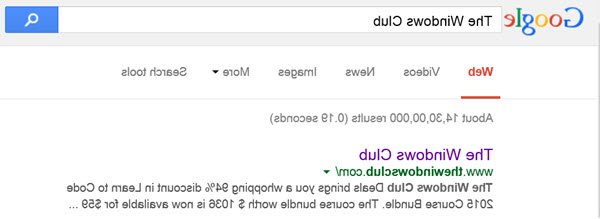
Google has launched com.google, a service that shows Google in reverse. The launch came around April Fools’ day. It is not clear however that if the new service is just for fun or is related to April Fool Day. The com.google site even redirects you to your local Google website. For example, Google India is being displayed as “elgooG aidnI“. Of course, the letters too are inverted in the logo.


com.google

When you type anything in the com.google page, it also shows auto suggestions. These auto suggestions too are being shown in reverse – inverted and mirrored. Even the letters typed in the Google search bar are inverted thereby creating confusion as to what you are typing. The text you type in the text search bar goes from right to left just like the Middle East languages – even though you are typing in it using the English language.
The results too are shown inverted. The text description comes above in inverted characters – reading right to left as opposed to the standard reading left to right. Then comes the URLs leading to the search result pages which too are in inverted form.
Among all top-level domains, we know that .google is not one of them. Google is using some sort of masking or any other technique to keep the website alive. The reason for creating such a page is just to provide fun and to challenge the users to read what is imprinted inverted. The technique of inverted reading has been proposed by many scholars to improve the speed of reading English or any other language but that does not seem to be an objective here.
reverse google
Google has been up for pranks for past many years. There are pages at Google or rather at google.com that are not known to many and are fun to use. Check out some hidden fun Google pages at this link. Another fun Google page is Gravity where things like text boxes and search buttons come tumbling down as if acting under the power of gravity.

3/25/15

Cloudberry Explorer for Google Storage Review


Cloud is the word. Most of us are using it knowingly or unknowingly. Maybe some of you already have a desktop SkyDrive sync software or a Google Drive software. The problem with these sync software is that they choose the time to upload the documents and files. With Cloudberry, things change. You just have to drag and drop a file from one window to another to upload the files. This review of Cloudberry Explorer for Google Storage checks out how efficient that software is.
Cloudberry Explorer for Google Storage
Cloudberry download & installation
The download part was a bit tedious. That’s because my Avast antivirus kept giving a message that the software I was downloading was a malware. It wouldn’t let me download the file. But since Cloudberry comes from a reputed brand, I assumed it was a false positive turned off my antivirus for a while. That done, download and the installation on my Windows PC was easier than expected. I did run an antimalware test on downloaded file and no threats were detected. I wrote about the antivirus warning to its customer care about this malware warning, and will update the post if I receive ant response from them.
There were also no crapware that generally accompanies freeware. Cloudberry comes in two versions – freeware and paid. We are reviewing the free version of Cloudberry.

Cloudberry Explorer for Google Cloud

Once installed, you can see the main window divided into two Explorer type windows. By default both will be your local storage. You will have to change the source of one of the Windows to Google cloud such as Google Drive or Google Nearline before you can upload or download files from the cloud.
Fig 2  - Adding Google Cloud to Cloudberry
But before you can select the source Google cloud, you have to add it to the Cloudberry. This, you can do from File menu > Google Cloud Storage. Since the version is specific to Google cloud, you can only add Google cloud offerings. There is a separate tab for Google Drive.
When you opt to add a Google cloud service to Cloudberry, you will have to sign up with your Google login credentials. For example, clicking on New Account will open up a login dialog where you enter your login credentials for the Drive you wish to add to Cloudberry. You can add more than one accounts to the system. For details about Google cloud, you can visit cloud.google.com.
That done, working with Cloudberry is a cheese. You can change the source of one of the windows to Google cloud – it could be Google Drive, Google Nearline, or any other type of Google cloud offering. All you need to do is to transfer files just like you move or copy files from one Windows File Explorer window to another Windows Explorer window. You can drag a file from local file to the Explorer window showing Google Drive to upload the file to Google Drive. To download a file, select a file from the Google cloud window and drag it to the destination folder in the local storage window in the Cloudberry Explorer.
The speed of transfer is good. It hardly took four minutes to upload approximately 600MB of data from local computer to Drive on a 16 Mbps connection. Thus, Cloudberry offers a better speed than the manual upload to Drive.
If you can remember, Google Drive can be accessed via web, and you have an upload option present. You use that option to upload files and folders. The speed of upload is slow in this case as compared to Cloudberry explorer. Plus, I did not have to open a web browser and log into my Google Drive.

Additional Features of Cloudberry

Other than easy and faster transfer of files, you can search for files with the free version of Cloudberry. You can delete the files using right click in the window showing contents of Google Cloud. There is an encryption facility available only to Pro users. The free version will not provide encryption to uploaded files and it is not clear if there is any encryption during transfer of files.
Summary
Cloudberry Explorer for Google Cloud is meant for mass transfer of data. That is, though you can transfer smaller files, it works better for bigger folders containing tons of data. The technique is HTTP but speed is good compared to manual searching and downloading or uploading data. Uploading of data is faster than you get using manual upload features of Google Drive. I would recommend it if you deal with good amount of data – if you transfer (upload and download) plenty of files every day. If you are using other Google services, such as the Nearline or Google Cloud, Cloudberry is a must have tool because – as I said – it works much better when working with volumes of data compared to manual upload/download using browser.
You can download Cloudberry Explorer for Google Cloud from its home page.

3/20/15

Have fun with Google Hangouts hidden animated emojis


Some of you may be using Google Hangouts for chat and video calls. You can use it as a chat box or you can make a video call to your contacts easily with just a click. There are few hidden animated emojis and emoticons of Google Hangouts that can help you pep up the conversation. I will take you through them.

Google Hangouts hidden emoji & emoticons

Just few keywords and animated emojis come to life. You can see emojis moving on your Google Hangouts chat box and it is really interesting to watch them. There are laughing, jumping and many such emojis! Place those keywords individually or anywhere in the sentence, an the animated emoji matching the keyword pops up. Let us see few of them.
“Hahahaha”
Just a single word with 4 sets of “ha”, gives you the animated emoji which pops up and keeps laughing. Use “Hahahaha” anywhere in the sentence and it replaces the text with the matching emoji.
Hahahaha emoji
“Happy Birthday”
Want to wish anyone uniquely. Use animated emoji of Google Hangouts for that. Type “Happy birthday” in the chat and you see cake or emoji with a hat – but both represent the event of birthday.
Happy Birthday emoji
“Happy New Year”
Want to wish New Year greetings in an interesting way? Type “Happy new year” in Google Hangouts and you can see and emoji with a duck pop up.
Happy new year emoji
“Hehehehe”
Type “Hehehehe” in that chat box and a chuckling emoji pops up on the left side of the chat box. This looks pretty interesting.
Hehehehe emoji
“LMAO”
Whenever you find something LOL in your chat box and want to reply to that uniquely, type “LMAO” in the chat box. An animated emoji of a fox clown and duck pops up.
lmao emoji

“ROFL”
Type “ROFL” in the chat box and see the duck and fox returns again. This may produce other alternative animated emoji sometimes, but we would be satisfied with any of the two emojis.
rofl emoji
“Woohoo”, “Woot” and “Yay!!”
When you want to share your excitement with someone, just type “Woot!” in the chat and you can see the excited yellow emoji pop up. It is the same with “Woohoo” and “Yay!!”
excited emoji
 “Bikeshed”
Got fed up using the same background for the chat box? Change the background color of your chat by just typing “/bikeshed”.
bikeshed emoji
“/Pitchforks”
By typing this, you can see that a tiny mob moves across the chat box. This can be used, when one of your friends makes inappropriate comparisons.
pitchforks emoji
“/Shydino”
I just see that a small dinosaur comes and makes an appearance in the chat, when you type it. I do not know what exactly it is and where to use it.
shydino emoji
“/Ponies”
Type “/ponies” in the chat box and you see that a single pony running fast in the chat box.
ponies emoji
“/Ponystreams”
If you want to make herd of ponies come running in the chat box, then type “/ponystreams” and hit enter. Type “/ponystreams” again to remove them from the chat box.
ponystreams emoji
These are some of the hidden animated emojis of Google Hangouts. If you have anything to add to the list, please do share with us through comments.

3/18/15

How to Download Google Web Fonts and Use in Offline Applications

Fonts used on Truetech4 are from Google’s Web Font Library. Yes, they are very popular! Though, you can use them online in any applications, it wasn’t possible till now to download them and use it offline. Here’s how you can download Google font catalog on PC/Mac and then use it on Microsoft Word, Photoshop or anywhere you want to.


To begin with, you need two things:
  1. Account on Fonts.com (Register for free)
  2. SkyFonts software application (Download)
How to Know the Font used in am Image

How to start using Google Web Fonts offline?

  1. Open the SkyFonts application and sign in with Fonts.com account. At the same time, login Fonts.com on web browser too.
  2. Go to Fonts webpage and browse Gallery.
  3. Click on SkyFonts button corresponding to the font you want to download and Press “Add”.

That’s it. Every font you select will now be synced with your Windows/Mac Computer. Now, when you click Manage Fonts button infront of Google Fonts in software application, you will notice .TTF fonts in a temporary directory. Right click and install them to Windows Font library.

3/2/15

Top 10 AdSense Earners in the World Updated 2015


There are many AdSense alternatives right now but, the name Google AdSense is only the pioneer in affiliate and advertising markets. You may probably have tried to make money with AdSense and failed to earn more than $1 a day, but sometimes even $1 arrives in the balance, isn't it? But today’s post is about some heroes who earn millions of dollars per month with Google AdSense. This is a updated post and trying to keep update frequently.

For some people have already chosen blogging as their career and primary income. As a blogger I know well that how much passionate they are to blogging. I just want to remember making money online is not an easy job. But people I going to mention below achieved that because of their dedication and hard work. So don’t be get jealous of them instead of getting an inspiration. The sites listed below are not steady and will keep update this post every month. Think AdSense is not a joke and if you really wish you can make it as your primary revenue than another. Have a look at the list of top 10 AdSense millionaires ever in the world.

Top 10 AdSense Earning Millionaires in the World

1. Pete Cashmore | Mashable

2. Shawn D. Hogan | Digital Point Forums

3. Markus Frind | PlentyOfFish (POF)


4. Robert Kevin Rose | Digg


5. Courtney A. Rosen | eHow.com

6. J. Michael Arrington | TechCrunch


7. Mario Armando Lavandeira, Jr (Perez Hilton) | Perez Hilton


8. Jason Calacanis | Weblogs


9. Jeremy "ShoeMoney" Schoemaker | Shoe Money


10. Pankaj Agarwal | Clickindia Classifieds


As I mentioned above AdSense is not a joke. If you take it seriously I swear you can make it as your primary income. before concluding this post I share my beliefs with you that it's possible with smart work (not hard work) and dedication. yes, I use the word smart work because sometimes working hard never brings you the complete result. But a smart work may bring more result with less effort. Use Google Keyword Planner to find out low competition keywords with high price. I'm preparing a detailed guide to help you increase your AdSense CTR. 

FIND US ON FACEBOOK

FIND US ON Twitter