5/7/15

Screen To GIF: Free software to create animated GIF Image within seconds

GIF image is highly sought file format amongst tech bloggers, who often write on how-to guides, as well as meme makers. Hence today we will look at a free yet extremely helpful software named Screen To GIF that helps you produce high-quality animated GIF image within a few moments.

Create GIF image using Screen To GIF

ScreenToGIF is probably the simplest way to record your screen and turn them into a GIF image or motioned image. This particular tool includes a number of handy features and tools, that will assist you in editing the GIF image before finishing.
To start with, download portable ScreenToGIF on your Windows PC. This is a portable software as well. After downloading this portable GIF image creator software, just unzip the file and double-click on it to open. You will see a window as follows:

The very first thing that must be set is to change the aspect ratio or the window size depending on your requirement. The default size of  484×209 is comparatively small for most.
Once you have et the default image size, you can start recording your screen by clicking on the Record button. To stop the recording, simply click on Stop button. Right after recording the screen, you will get a window that looks something like the subsequent picture:
Screentogif window after recording
Now, you have a whole bunch of options to edit the image before finalizing. You can add the following to your image, after recording:
Create GIF image using Screen To GIF
  • Add text
  • Add quick caption
  • Add image frame or title frame
  • Edit frames
  • Change animation speed
  • Crop image
  • Use transitions
  • Add border around image
  • Export specific image frame (More information are written below)
  • Delete selected image frame (More information are written below)
  • Use filter: Blur, Sepia, Gray Style

Get a still image from GIF image

Apart from creating the GIF image, you can also export a still image from the recording. ScreenToGIF helps users to change the frame number that will be captured in each second. If you have set a huge number, you will get more frames or images. This is what “Export specific image frame” means.
ScreenToGIF Settings
ScreentoGif settings
Screen To GIF doesn’t come with a huge number of settings. Instead, it has fewer but very useful features.
  • Use custom GIF encoding or paint.NET encoding
  • Change loop – use custom loop
  • Show or hide mouse cursor
  • Show or hide mouse clicks
  • Use hotkeys to start and stop recording (F7 – Record/Pause & F8 – Stop)
  • Change aspect ratio
  • Change number of frames to be captured in a single second
Download Screen To GIF from here and start creating quality GIF images on your Windows PC.

Uranium Backup Free review & download

There are plenty of free backup tools available. Even the default backup tool that comes with Windows 8.1 is good enough to let you take different backup sets of the data you want. You also get to choose between overwriting backup sets and incremental backup sets. However, most people prefer third-party backup tools as they offer more functionality. This review of Uranium Backup Free checks out it features and ease of use.

Uranium Backup Free review

The download and installation was easy. There are no third-party apps that are bundled into the installation, as of date, so you need not worry about it installing toolbars and other browser add-ons. It is just the Uranium backup program that is installed.
Once installed, you can access it from the System Tray by right-clicking on its icon or by clicking on the desktop icon. In both the cases, the first thing you have to do is to create backup sets and set destinations for the backup sets.
Too many restrictions
Unfortunately, the free version has plenty of restrictions. One that I would like to mention in particular is that it won’t support incremental backups. This means that every time you run the backup using Uranium, you will be creating a different backup set or you will be overwriting the previous backup depending upon the folders you chose.
Though the image above shows you plenty of destinations to back up, all except the first are available only in the paid versions. With the free version, you can only select a place on your network or on an external hard disk drive for backing up the data. You cannot even use the DVD burner with the free version. Now, that is way too much of a limiting factor, that may make people away from using Uranium. As it is, people nowadays prefer to back up their data to cloud instead of DVDs, etc. If that option is present but cannot be used in the Uranium Backup Free, people are sure to be frustrated.
In short, the free version of Uranium backup tool will serve only those users who like to create a full backup of their data and copy it to external hard disk drives. There is no point in backing up data to the same hard disk drive even if it is a different drive letter as the hard disk is the same and if it crashes, all the drives on it will be inaccessible.
The application is good only for users using external hard disk drives for backing up data. For others who would like to back up to cloud etc,  Microsoft, Amazon and Google are the answers (for free backups). If they want to go paid, IDrive, ADrive, Mozy etc are better as they offer backups directly to the clouds.
Using Uranium
Assuming that you are one of the group that prefers local hard disk backups to external storage on network or USB connected hard disk drives (or even on a desktop with two hard disk drives), you have to first create a data set that needs to be backed up. This, you can do by selecting Create Data Set option in the File menu. You will get a dialog box that will let you browse and select the backup folders and files using check boxes. Once you are done, selecting the files to be backed up, you have specify the destination folder.
To specify the destination folder, click on the first option under the lower section of the right side of the Uranium window. It says “Click here to add a destination folder for this backup“. You can see it in the image above.
Clicking on any other option will ask you if you wish to upgrade.
Anyway, once you are done with creating backup sets and setting destination for it, you can run the first backup manually by clicking on “Run selected backups” in the File menu. Some of the best things about Uranium are that it compresses the backup files and folders before copying them to backup destination and it offers encryption for the backed up files. But I did not see any option to set up scheduled backups or incremental backups. This means it overwrites the previous backup set whenever you run the backup set manually. The only method available to avoid overwriting is to select a different destination (folder) before you manually run the backup using the Uranium interface or the system tray icon.
Verdict
Uranium Backup Free is a good choice if you back up your data locally to some other hard drive connected to your computer. The paid version has options to back up to cloud but the free one doesn’t.
Encryption is present, so you can be sure about secure backup. You can save configurations using a password in the Settings menu. Beyond that, it is simply a tool offering minimal features. If you wish to back up to cloud, either purchase the Pro version or use one of the tools mentioned above. You can download Uranium from their website.
There are some other good free Imaging, Backup and Recovery Software available on the Internet. Moreover, there are also some free online backup tools that you might want to consider if you wish to back up to cloud and if your backup needs are small. Besides this, you may also use Microsoft OneDrive or Google Drive for backing up, although they are more of sync nature. That is, if you delete a file or folder from the local disk, it will be deleted from the cloud storage too. An advantage is that instead of deleting them forever, the deleted items are moved to folders called Deleted Items or Trash and they stay there until you empty them manually or if they exceed the quota of Trash (in Google Drive). They can be used as backup in case you want the latest version of your backup sets on the cloud.

AnyDesk: Best Free TeamViewer Alternative

If you are working as a team, this is impossible that you haven’t heard about TeamViewer. If you are looking for aTeamViewer alternative, then this free software called AnyDesk may interest you. This fast remote desktop software has DeskRT, a new video codec at its core.

AnyDesk review

As AnyDesk is a free portable software. If you want to use it for a long time, you can consider installing this using its installer.
To get started, at first, download AnyDesk on both the PCs. Next double-click on the executable file to open it. You will get a window that looks like the following picture:

Teamviewer alternative

A unique code will be appear on your screen. You can find this type of code, only if the software is not installed. Otherwise, you will get the unique with the Computer name.
Now, just enter this unique code of one PC in another PC’s AnyDesk window – under Remote Desk tab and hit theConnect button.
That means, if you have two PCs called “A” & “B” and you want to access “A” from “B”, just copy the code from “A” and paste it on “B”.
After hitting the Connect button, you will get the Windows Firewall popup for this new connection. Just allow it to access AnyDesk.
Windows Firewall Windows
At the same time, you will get a confirmation pop-up on the second PC that you want to access from your primary PC.
Teamviewer alternative
You can hit the Accept button or consider checking few options. The options are as follows,
  • Allow to hear sound
  • Allow to take control
  • Allow to use clipboard
  • Allow to block keyboard and mouse
If you remove the tick mark from corresponding option, the feature will be unavailable. Otherwise, the main PC owner will be able to access everything.
Chat with Friends using AnyDesk
AnyDesk allows users to chat with the connected PC owner. Just click on Chat button from the primary PC and write down your message.
AnyDesk chat window
The message will appear on the second PC.
AnyDesk Chat Window on Second PC
AnyDesk also provides some other options after connecting. You will see the following options on your screen:
  • Change view mode (full screen, original, shrink, stretch)
  • Quality: best audio/video quality, balanced, optimized, according to connection speed/data speed
  • Show/hide remote cursor
  • Allow/prevent mouse and keyboard control
  • Take snapshot.
Considering all things, AnyDesk is really a useful tool. You can download AnyDesk from here. As of now, you can use AnyDesk to connect with only Windows PC’s.

4/22/15

PC Win Booster: Keep your Windows PC free of Junk Files

If you find that you are running out of disk space on your Windows PC, you need to run the built-in Disk Cleanup utility or some good free junk file cleaner. Today we will have a look at one more freeware called Soft4Boost PC Win Booster.

Hard disk is the storage device of a PC which holds all your important files and data. The Windows operating system and various other programs create the temporary files and many other junk files during installation and running. All these files get piled up on your hard disk, and hence the hard disk may run out of free space. Thus, it becomes imperative that we delete the junk temporary files regularly.

This tool will help remove junk files. Not hundreds, but thousands of files get piled in the hard disk of our computer system over time, which includes cached thumbnails, temporary files, cached files, setup files, log files and much more.
PC Win Booster
The main overview of this freeware is simple and displays everything. The software scans your PC and detects all the junk files stored in various folders. It lists all the unused, obsolete and harmful files cluttered in your PC.
Just click on ‘Start Scanning’, the program will scan your PC thoroughly and give you a detailed list of junk files.
It includes the following modules:
  1. Junk File remover
  2. Duplicate Files Finder
  3. Unwanted Toolbar remover
  4. Program Uninstaller.
The Duplicate Finder module of the program finds duplicate files, identical pictures, and duplicate documents if stored in your system. Unlike the other similar software, PC Win Booster compares the documents by their content, and not just the names. To use this function, select the search rule, click on the Duplicate Finder button, select the search directories and click on ‘Start Scanning’.
Moreover, this program also finds and removes toolbars that may be installed on your web browser and remove them easily – which the built-in Windows program remover may not be able to.
PC Win Booster has 11 different skins, so you can change it if you want. However, I didn’t find any of the skins beautiful enough to be changed.
You can download it from here. It brings along a program Soft4Boost Secure Eraser with it – however, it is harmless and can be easily removed using the Control Panel.

4/14/15

Disk SpeedUp: Freeware to Defragment and Optimize Hard Disk

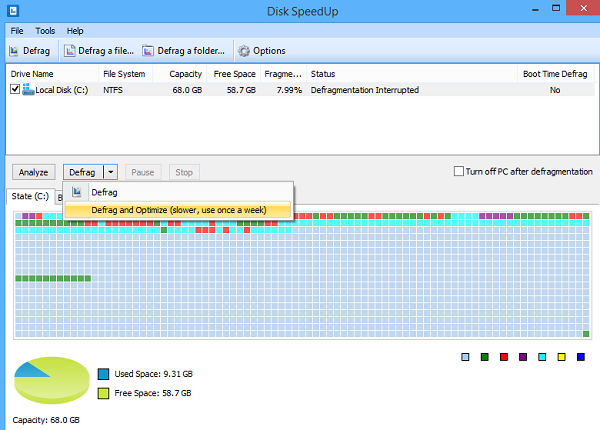
Glarysoft Disk SpeedUp is a completely free tool to analyze, defragment and optimize disk space in quick time and enhance your computer performance. The freeware is easy to use, without any toolbar or adware and boasts an intuitive interface.

The user-friendly interface offers basic functions:
  1. Analyze the disk
  2. Defrag the disk
  3. Defrag and optimize the selected disk/file/folder
  4. Automatic defrag (when PC is idle)
  5. Automatic shutdown (when defrag completed and schedule preset)
Apart from the above the tool features advanced settings to meet advanced requests.
Disk SpeedUp Freeware Review
When the download of the application is complete, installing it will take a minute. Initially, you will see the main application window split into 2 tabs dedicated to
  1. Defragmenting tasks
  2. Configuring settings
If you observe the image closely, you will find all drives along with their capacity limit, free space and fragmented space and status are shown in the list. You can select any of the features and perform an analysis to evaluate the defragmentation status.

The results of the operation performed are shown in the Report tab, which includes the file name, the number of fragments, the size, and the path of the files.
Disk SpeedUp
Boot Time Defrag is a feature that permits a user to defrag main hard drive before Windows even starts, which under normal conditions cannot be defragmented since they’re in use while Windows is running.
Boot time defrag
The handy utility also allows you to schedule the program to run on a daily, weekly or monthly basis.
For optimizing purposes, first select the hard drives you want to optimize and then choose Defrag and Optimize from the File menu. Thereafter, go to Tools > Options > Optimize.
tools menu
The menu option holds the optimization settings that you can change. Under Move large files to the end of the drive you will notice the following four options:
  • Minimum file size: This option can be altered to one of ten file sizes from 10-100 MB.
  • Files that were not accessed in last month: Any file that not accessed in a month is automatically moved to the slower portion of the hard drive.
  • Files in the Recycle Bin: All files under the Recycle Bin will be moved.
  • Files in the selected types: Below this option you will find other useful options like Archives, Movies, and Disk Images.
Disk SpeedUp is a useful defragmentation software for Windows. It doesn’t hang up or crash. It has small download size and is pretty easy to install quickly and start defragmentation of files/folders as well as whole hard drives. The only shortfall is it doesn’t work from the right-click context menu in Windows Explorer.
It is available as a free download from its home page.

Any Uninstaller: Free alternative to Windows Program Uninstaller

You can free up lots of space on your PC by uninstalling the programs you aren’t using. Moreover, when you uninstall unwanted software, you might just end up speeding up your Windows PC too, as it will even remove the start up entries and background processes which te software may be running, everytime your computer starts. While you can always use the built-in Uninstall feature in the Control panel, some third-party free uninstaller software might end up doing a better job. Any Uninstaller is a freeware which can help you uninstall, modify or repair any program easily.
Any Uninstaller for Windows

Soft4Boost Any Uninstaller works like the Windows standard program uninstaller, but comes with a few extra features which help you to get rid of the stubborn software on your computer system easily. It is a useful tool and a free alternative to Windows default program uninstaller.
This is a portable program with a user-friendly interface. Just download the program and run it. The program takes a few minutes to scan your PC and bring up a list of the programs installed.
Navigate the list of programs, select a program you want to remove and click on ‘Uninstall’ from the bar on top. You can also modify or repair the programs from your PC. After uninstalling the program, Any Uninstaller runs a cleanup on your PC and deletes the remnant files related to that particular program. The program also scans the PC thoroughly and shows up a list of all registry tracks and file tracks of the uninstalled program and deletes them.
any uninstaller for windows
The customizable interface of Any Uninstaller allows you to change the skin. There are 11 options of skins to choose from. Just click on ‘View’ button and select the skin you like. The program comes with a free lifetime update service plus unlimited free technical support for its users. Furthermore, there are many different language packs available for the users worldwide.
You can download the Any Uninstaller from here and remove all unwanted programs for your Windows PC.

4/3/15

Create and Format bootable USB flash drives with Rufus

Rufus stands for the Reliable USB Formatting Utility with Source. It is a tiny and lightweight utility for Windows PC, that helps to easily format, as well as create USB drives, such as USB keys, memory-sticks, and USB pen-drives etc., which are bootable and user-friendly. It has advanced and standard options to suit all the skill levels.
Create bootable media easily

This tool has a user friendly interface which looks like the built-in format panel of Windows. We can choose a partition scheme, device, cluster size, target system type, new volume label and file system types – like NTFS, FAT32, exFATand UDF..
There are a few basic formatting options available, which help us check the device to see if there are any bad blocks. It also helps in the selection of algorithms (from type 1 to type 4), we can create an extendable label, quick format mode and icon files. A bootable disk is created using the ISO image. Rufus tool records all the activities to a different panel, and it is saved into a log file.
This multifaceted tool is useful when:
  • USB installation media need to be created from bootable ISOs (Linux, Windows, and UEFI)
  • A person wants to work on a computer in which an OS is not installed
  • For the purpose of flashing a BIOS or any other DOS, firmware is required
  • A person wishes to run a low-level utility.
New features in Rufus 2.1.649:
  • 32 bit support range for UEFI: NTFS boot
  • Addition of Advanced mode stand-alone UEFI: NTFS with boot installation
  • Disable support for hidden GRUB version ISOs
  • Repair and correct Windows UEFI installation related issues while using GPT/NTFS.
  • generating a repair of 32 bit installation flash drives in UEFI Windows 10.

Rufus for Windows free download

Rufus is arguably the best solution for creating and formatting a bootable USB drive. Download your copy of Rufus from the official website here.

4/1/15

BeeDoctor for Windows PC: Optimization freeware integrated with an Antivirus

BeeDoctor offers many features in a single suite, all aimed at optimizing and protecting your Windows computer. It includes an advanced system clean up mechanism, integrated Avira antivirus, software acceleration module and PC optimization tools.
BeeDoctor for Windows PC

BeeDoctor has four sections – Cleaner, Speed Optimizer, Antivirus and Uninstaller.
The Junk cleaner that can perform a deep scan to find and remove unused items that are not required by the computer. A detailed log gets created, once the clean-up process is over. It list’s down all items that were removed, which can also be restored back, if required. The detailed log, stores the information about the removed files, for few days, after which it is deleted permanently.
Its Speed Optimizer optimizes boot time, startup items and suggests clean up tasks which are required. An option to disable or enable running task or services is also available.
BeeDoctor includes a Self Protection feature that protects your computer from active malware threats and offers real time protection. If we talk about built-in protection feature, there are three types of scanning methods BeeDoctor has to offer us: Quick scanFull scan and Scan in, all powered by Avira antivirus.
  1. Quick scan: Takes care of common files and folder scan.
  2. Full scan: Runs a detailed scan on every files and folders on your PC.
  3. Scan in: Will run a custom scan on selected files/folders when required.
A user can add pre-specified files/folders to trusted list as well.
The inbuilt Software Uninstaller works great. It has a deep cleaning mechanism to remove leftover registry items.
The tool can also be used to tweak the system issues. Some of the tweaks offered are – close unresponsive program automatically, improve effective bandwidth, optimize TTL values, reduce bandwidth consumption, optimize WINS query time and so on.
Apart from section wise optimization feature, BeeDoctor offers a “One Click” button that will scan your system and let you know at the end, which section requires your attention.
BeeDoctor is a freeware application, available for free download from their official website here . Do, give this freeware a try and share your experience with us in your comments below.

3/30/15

Tencent PC Manager: Free Antivirus for Windows


Tencent PC Manager is a new free antivirus software for Windows that claims to have the largest security cloud base, the best anti-virus engine and seven international authoritative certification. It offers strong protection from computerviruses, spyware, malware, rootkits, and other emerging threats. The application detects and fixes safety as well as performance issues encountered on your Windows PC. Let us review it and have a look at some of its features.

Tencent PC Manager

Tencent PC Manager
Tencent, in case you did not know, is China’s largest and most used Internet service portal and the fifth-largest Internet company in the world after Google, Amazon, Alibaba, and Ebay.
Tencent PC Manager makes use of the following to detect malware on your Windows computer:
  1. Tencent cloud
  2. Tencent Antivirus engine
  3. Avira antivirus engine
  4. Tencent system repair engine
A nifty feature of Tencent PC Manager is that it constantly keeps a hawk eye on your computer and as soon as you download a file off the Internet, it thoroughly examines its contents, just to notify you if any suspicious component is detected.
The application promises a faster scan using fewer system resources, and real-time protection by instantly identifying and blocking new threats as soon as they appear. In addition to above, PC Manager includes anti-phishing, link scanner, secure browsing, webcam protection, USB protection, and hacking detection protection modules.
Apart from Quick Scanning, the Custom analysis lets you check the drives and folders you are interested in, as well as the PC areas that are usually most vulnerable: system memory, system and Internet Explorer settings, startup apps, frequently used programs or hijacked system software.
The settings menu houses the following tabs,
  • General Settings – Lets you enable self-defense to avoid Trojan attacks.
Tencent PC mnager Settings
  • Antivirus settings – Allows you to add programs to the White-list that can be ignored from scanning when the PC Manager starts.
Tencent Pc Manager Settings 2
  • Real-Time Protection – Allows you to take action on threat detection.
Tencent PC Manager Settings 3
  • Download Protection – Flashes security prompt on dangerous files.
Tencent PC Manager Settings 4
The only disappointment you come across while using the application, there is no scheduled scan so you need to do it manually. Apart from this, Tencent PC Manager integrates well in the context menu of Windows Explorer and lets you effortlessly scan whatever file or folder you select.
Visit its home page if you want to read more about it and download it.
Tencent is China’s largest and most used Internet service portal and the fifth-largest Internet company in the world after Google, Amazon, Alibaba, and Ebay. Microsoft also recently announced a strategic partnership with Tencent. If your Chrome gives you a warning, it could be a false positive.

Soft4Boost Toolbar Cleaner: Remove unwanted Toolbars, Addons, Plugins

Toolbars which are foisted on your computer as bundled software, usually affect the performance your PC. These toolbars, add-ons, and plug-ins which land silently on our PCs while installing the third party freeware, may even compromise the security of your computer, clutter the screen space of your browser and make it load slowly. The may even make some changes in settings, which could be difficult to revert. They could show pop-ups and even leak your personal data. If you are fed up of such annoying and nasty toolbars and their intrusive pop-ups, Toolbar Cleaner is a free tool that can help you remove all those unwanted toolbars, add-ons and plug-ins.

Soft4Boost Toolbar Cleaner

While you can manually uninstall toolbars using the Control Panel, toolbar cleaner and remover tools like this one makes things easier and ensures a complete uninstall.
Soft4Boost Toolbar Cleaner is a free toolbar uninstaller software, which removes all unwanted toolbars, addons, plugins from your Windows PC in real time, for any browser.
It is a simple program which takes just a few minutes to download and install in your computer system. Even a layman can install and run it to remove the tenacious toolbars, add-ons and plug-ins from your PC.

Remove unwanted browser toolbars, addons, plugins
You need to close all your running browsers to make this program start working. Once you have closed them, andcreated a system restore point, run the tool. The main overview of the program says all.
Click on the Refresh button, and the toolbar cleaner then automatically identifies all the toolbars, addons, browser extensions and plugins along with their path and brings you the entire list in real time. You can then select and remove them manually from your PC. It allows you to remove one or more items at one go.
Toolbar Cleaner will display a list of all – with pre-checked boxes, so do not click on Remove blindly. Go through the list and uncheck those which you know are safe and useful to you. Keep only the one’s you want to remove, checked. Once you have done this, you may click on the Remove button. This make the whole removal process quite easy as you can remove multiple browser extensions in a click.
The View tab allows you to change the skin of the program. There are 11 different skins available to switch upon – AMPix, iTunes, Android, Bionix, GPX, iPhone, Metal, MSOffice 2010, Ubuntu, VIPZone, and Xfactor.
If you don’t want to remove any of the toolbars or plugins from your system, you can add them to the Ignore list and refresh the list. The Ignore list already includes My Toolbar, and Soft$Boost Toolbar. You may want to remove them from this list.
You can also send an email to the support team directly from the ‘Email us’ tab in the About section.
You can download Soft4Boost Toolbar Cleaner here and remove the disturbing toolbars and add-ons. WOT ranks the website poorly, but I did not face any issues while downloading and installing the tool. The program is ad-supported and it displays a static ad in the header.

Hide, lock and password-protect private folders with SecretFolder for Windows

SecretFolder is a tiny freeware for Windows, that lets you hide, lock and password-protect your personal and private content. SecretFolder is a basic, yet useful tool without any unnecessary features. The security features are tough and once you’ve locked a folder, no one will be able to access it. While you can always password protect folders without using any software, tools like SecretFolder makes things a lot easier. SecretFolder comes with all the essential components that ensure complete protection of your private folders.
SecretFolder for Windows
The first time you start SecretFolder, you’ll need to create a password. Please ensure that you create a password that is strong enough and easy to remember for you as if you forgot the password, there is no solution, as in such a situation all your files can get permanently locked and hidden.
Hide, lock and password-protect folders
To lock a folder, simply open the application and then click on ‘Add’ button and then browse to your desired folder. SecretFolder supports NTFS, FAT32, exFAT and FAT volumes. Similarly you can remove a folder by hitting the ‘Remove’ button. You can even toggle Lock/Unlock using the buttons in the above menu bar.
The program is very simple to operate, to access your locked folders you just need to select it and press the Unlock button and the folder will now appear in the same directory from where it was locked. To lock again, hit the Lock button and the folder will now again disappear. The locked folders do not appear even if you’ve enabled the hidden folders from Folder Options.
Talking about the security of your data, SecretFolder comes with protected uninstall, which means that no one can uninstall the application without the master password. Moreover the CMD commands are also not able to access the locked folders.
SecretFolder Uninstall
Most of the people are concerned about the time taken to encrypt/decrypt the data, but here I must mention that SecretFolder locks/unlocks your folders quickly, with no lags and no waiting.
Under Preferences, you can edit a few settings – you can enable the start-up option and you can enable/disable the system tray icon too.
SecretFolder is simple no-frills freeware that does its job well. It is easy to operate and handle. Unlike other software, SecretFolder can lock an unlimited amount of data, there is no limit as it is 100% free.
Click here to download SecretFolder.

3/29/15

Create Drives for your desired Folder with Visual Subst

Visual Subst for Windows, lets you create, mount, set any folder as Virtual Drive. It lets you access frequently used folders directly from My PC or Computer folder.

Suppose you are working on an project and have placed your project folder in a drive. To access that particular folder you have to go across many folders and sub folders. So, instead of investing time in browsing so many folders, how about creating drives with the name of folders? Using portable Visual Subst freeware for Windows 8 / 7, you can create drives of those folders, which you are currently working on. After creating the drives, these files can be easily accessed. This helps you to open your folders quickly with just one click.

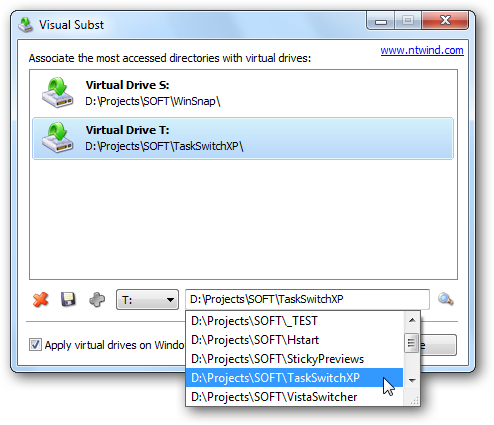
Visual Subst is a small tool that allows you map virtual drives easily. You can associate the most accessed directories with virtual drives using this freeware. It comes with a simple graphical user interface. It is also designed for those who are really fond of using cloud storage software like Dropbox and Google Drive. Visual Subst make it easier for you to create drives and even remove it when not needed.

Visual Subst features

Visual Subst is a very handy tool that comes with handful features making the task of the end user easier. Some of the features worth mentioning are:
  • It is portable
  • Straight forward interface
  • If drive letter is used by another drive, it fixes the error automatically
  • Quick and easy access to frequently used folders
  • Small and handy utility.
Mount and set any folder as Virtual Drive
To mount and set a folder as a drive or to create drives, all you need to do is just to download Visual Subst software from its official website and click on Vsubst to run it.
On the home page, click on the dropdown available at the bottom. Select any letter of your drive where you want to create the folder.
Visual Subst
After selecting the letter for your drive, click on the magnifying glass to browse the folder you want to set as a drive. You can select any folder or even create a new one.
1-create-drives-3
Once you select the folder, click on the bold green icon to create drive of that particular folder.
1-create-drives-4
To see the created drive in the list you can open the Windows File Explorer and check it.
Click here to download Visual Subst. It is fully portable tool as all its settings and configurations are stored in an INI-file.

3/26/15

Backup Firefox addons, extensions, themes, passwords, bookmarks, etc.


Firefox Environment Backup Extension, in short FEBE, is a free Firefox extension that lets you backup your saved passwords, preferences, cookies, history, Firefox themes and even the installed extensions. FEBE can even rebuilt your Firefox extensions to installable xpi files and thus making synchronisation across different instances of Firefox a much easier process. You can create automated backup jobs which can be performed daily, weekly or monthly. Using FEBE you can even backup other files which are not Firefox related.

Backup Firefox addons, extensions, settings, preferences with FEBE

Once, you’ve installed FEBE the first thing you need to do is to choose the backup directory, you can do so by going to FEBE options and then going to the ‘Where to Backup’ tab. After choosing the backup directory you must customize FEBE as per your needs, all the customizations can be done from the FEBE Options.
FEBE Backup firefox
Further FEBE options are divided into four major sections, all of them are discussed as below:
What to Backup: As the name suggests, under this section you need to select the elements that should be backed up when you hit the Backup button. Using FEBE you can mainly backup Extensions and Themes and additionally you can even backup bookmarks, preferences, cookies, usernames and passwords, browser history, form fill history, permissions and etc. You can even add user-defined backups which lets you backup any file or folder along with the normal backup performed using FEBE. For user-defined backups you just need to give it a name and choose a source file/folder to be included in the backup.
Where to Backup: Under this section, you can choose or change the backup directory and further customize it. You can enable time stamped directories so that the backups are saved with a time stamped on their folders. You can even view backup results, backup history and even more under this section.
When to Backup: This section lets you create automated backups, you can create automatic backups as per daily, weekly or monthly basis. Automation of backups on browser start-up/shutdown is also allowed and the program comes with an inbuilt functionality for backup reminders.
How to Backup: This section includes some basic configurations that can be customized for better functioning. For example you can turn on/off the sounds and notification windows or you can disable the results page or disable the status bar icons or turn off warnings about pending extension installs.
backup your Firefox extensions
Once you are done with configuring up this extension and saving your preferences you are ready to go. To backup just hit the FEBE icon and whoa the backup is saved in your chosen location.
Similarly you can restore the backup onto same Windows PC running Firefox with FEBE. You can restore all the elements, or you can restore only some parts of the backup. FEBE even lets you to create delayed backups.
Click here to download FEBE. Its a useful all-in-one backup tool for Firefox.

3/23/15

PCFerret: Find hidden data on your Windows computer

PCFerret is a simple program designed to find hidden files, data and software on a Windows computer, which may be difficult to find otherwise. This lightweight application takes less than a minute to land on your PC and you can start running it right away after a very quick installation. PCFerret scans the entire components of your PC and gives you detailed information in no time. The simple layout shows all the tabs and button in the main overview and even a beginner can run the program easily.

Find hidden data in computer
PCFerret will help you find hidden data in your Windows computer. Let us have a look at some of its features.

System Details

If you are looking for the basic details about your system, such as the amount of RAM, operating system of your PC, computer name, motherboard details etc., run the ‘Quick System Details’ and if you want to get the detailed information about your PC, click on ‘Full System Details’.


The ‘Full System Details’ scanning may take around a minute or so but gives a detailed report with all important information including-
  • Operating System
  • Motherboard
  • BIOS
  • Monitor
  • Processor
  • Details about every single Drive in your PC
  • Network adapters
  • USB Controllers
  • Printers
  • Antivurs software installed on the PC
  • Sound devices
  • Account names with complete user details
Find Files by Type
PCFerret
If you want to find any particular file type on your PC, click on the tab ‘Find Files By Type’. The program analyzes the entire drives, folder and subfolders of PC and helps you finding any required file. The program can search for any type of file including Images, Movies, Executable files, Encryption files, Compression files, Word files etc.
Browser Cache
PCFerret Cached URLs
PCFerret can also find the cached URLs stored in your PC. Go to the tab ‘Cached URLs’, select the browser and click on ‘Start Analysis’. The program then gives you a detailed list of cached URLs stored in your PC. It may take a few minutes.
Detect Tor BrowserPCFerret TOR detection
Tor is a form of network surveillance that helps you defend your PC against traffic analysis. The Tor Browser detection feature of PCFerret helps you detecting the presence for the Tor Browser in your PC. Just click on symbol ‘T’ under the tools section and the system will start scanning your drives to detect the TOR if any.
Password Generatortor  detect
The password generator feature of PCFerret helps you generating very complex passwords for different applications and websites. You can use various customization options and generate up to 20 password in a single click.
PCFerret also gives you the detailed information about:
  • Reboot Operations
  • ADS (Alternate Data Stream) Discovery and manipulation
  • Windows reboot operations discovery and manipulation
  • MD5 / SHA Hash Generation Tool
  • Tor Browser Detection
  • Fully integrated help system which does not require Internet access in order to function
  • Industry standard installation process which is both fast and simple to use

PCFerret free download

The program uses well-tested algorithms to find hidden data stored in your computer and gives you the accurate and reliable results. You can download it here.

FIND US ON FACEBOOK

FIND US ON Twitter